
WIRELESS PRINTING
WIRELESS PRINTING
Your Library makes printing from your devices versatile and easy.
Wireless Printing with Princh
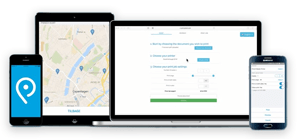
With Princh there are two ways to send print jobs from your device. You can walk up to any public printer at our locations and scan a QR code found there or you can install the Princh app on your device and print from the app (Google, opens a new window - Apple, opens a new window) or on your computer.
If you are on your own device INSIDE one of our Libraries and want to send a print job directly to our printers, then use Princh.

Printing from Your Computer
Interactive Guides: Web App, opens a new window | Computer, opens a new window
- Open a browser and go to print.princh.com, opens a new window
- Enter the printer ID and upload your documents
- Adjust your print settings
- Pay using one of the available options
Printing from Mobile Apps
Interactive Guides: Apple, opens a new window | Android, opens a new window
- Install the Princh App for iOS or Android
- Open your document and share it with the Princh app
- Select the printer by scanning the QR code and adjust your settings
- Pay using on of the available options


Printing from Mobile:
Printing from Your Computer: